
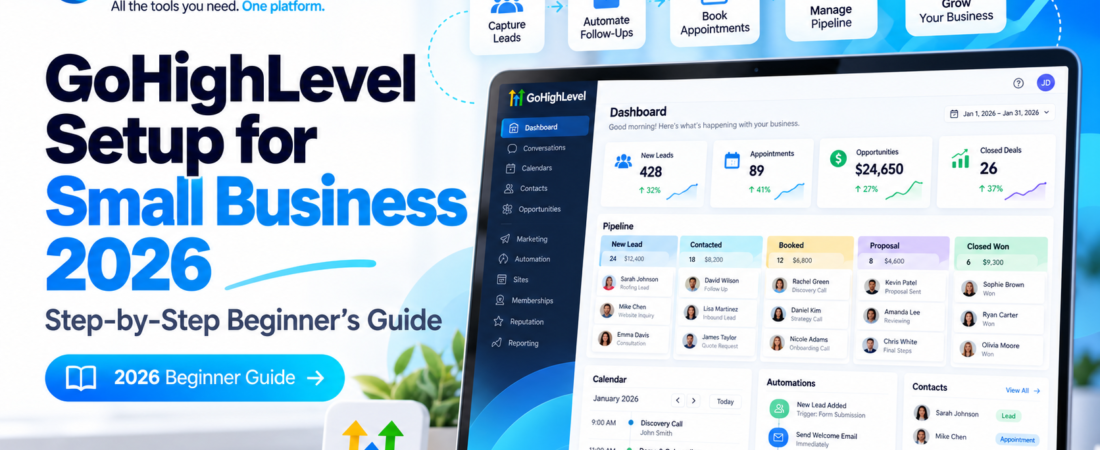
GoHighLevel Setup for Small Business: The Practical Starting Point
GoHighLevel setup for small business works best when you start with one clear customer journey—not every feature at once. First configure your business details, then organize contacts and opportunities, connect your calendar and communications, and finally activate a carefully tested follow-up workflow.
This step-by-step guide focuses on a useful first system for local service businesses, consultants, agencies, coaches and appointment-based teams. You can adapt the same foundation for a dental practice, med spa, home-service company or another business type, subject to its privacy and marketing requirements.
Reviewed October 26, 2026. Product screens, eligibility, add-on fees and trial terms can change; confirm them inside your account and on HighLevel’s official pages.
Affiliate disclosure: BizOpsEngine is an independent HighLevel affiliate, not HighLevel itself. We may earn a commission if you sign up through our referral link, at no additional cost to you. We aim to distinguish platform documentation from our practical recommendations.
Your 7-Step Launch Checklist
Mark each task when it is finished and tested. Your progress stays in this browser.
Checklist state is stored locally in your browser; no contact or account data is collected by this feature. It may reset if browser storage is cleared.
Before You Start: Choose One Business Goal
It is tempting to set up funnels, AI agents, email campaigns, social scheduling and twenty automations on day one. For a first launch, choose just one measurable outcome: capture a new inquiry, follow it up appropriately and book the next appointment. A smaller setup is easier to troubleshoot and explain to your team.
Prepare these details
- Legal business name, website, address, phone and time zone.
- Team member who owns incoming leads.
- Working business email and access to DNS settings.
- Existing contact data in a clean CSV, if importing.
- Privacy policy, terms and consent language for forms.
Define a simple lead journey
Website inquiry → CRM contact → New Lead pipeline stage → team notification → appointment booked → follow-up outcome.
This gives you a real-world process to test instead of a collection of disconnected settings.
Compare GoHighLevel plans, features and potential extra costs before deciding which subscription makes sense.
How to Set Up GoHighLevel for a Small Business in 7 Steps
The paths below refer to a HighLevel sub-account (often called a location). If you manage multiple client locations through an agency, first select the correct sub-account. Interface labels may vary as HighLevel rolls out updates.
Complete Your Business Profile
- Confirm the displayed business name and contact information.
- Enter the correct address, website and time zone; review your currency and other business defaults.
- Check user access before inviting more team members. Give people only the permissions needed for their roles.
- Save changes, then verify the contact details in a test email or appointment where relevant.
Why this matters: wrong time zones can confuse booking availability, while incomplete business information can create problems during communication setup or messaging registration.
Import and Organize Your Contacts
- Export your existing CRM or spreadsheet records as CSV.
- Remove unnecessary rows and check names, email addresses, country codes and duplicate records.
- Upload the CSV and map each column to the corresponding HighLevel field.
- Preview the import settings and confirm how new versus existing contacts will be handled.
- Start with a small test batch; check imported records before processing the full list.
Important: importing a contact does not grant permission to send promotional SMS or email. Keep consent records, honor opt-outs and respect the applicable laws and platform rules.
Create a Sales Pipeline That Matches Reality
Start with stages that answer a practical question: where is this lead, and who must do what next? For many small service businesses, a starter pipeline could look like this:
| Stage | Meaning | Next action |
|---|---|---|
| New Lead | New inquiry received | Assign owner and review details |
| Contacted | First response attempted | Arrange next conversation |
| Appointment Booked | Call or visit scheduled | Confirm time and preparation |
| Proposal / Quote | Estimate or offer shared | Follow up on decision |
| Won / Lost | Final outcome recorded | Onboard or review reason |
HighLevel handles Won and Lost opportunity states, so use the interface’s built-in outcome handling rather than creating unnecessary duplicates. Keep the pipeline simple until the team is using it consistently.
Connect a Calendar and Build a Booking Page
- Connect the relevant Google, Outlook or other supported calendar provider.
- Configure the linked calendar and conflict checking so existing commitments are respected.
- Create a personal or appropriate team booking calendar in HighLevel.
- Set working hours, meeting duration, buffer time, booking notice and availability.
- Open the booking link in an incognito browser and reserve a test slot.
A calendar connection and a HighLevel booking calendar are not necessarily the same thing. You need a booking configuration that controls which time slots visitors can select.
Configure Email and Phone Carefully
Email: visit Settings → Email Services. If you use a dedicated sending domain, follow the supplied DNS verification steps, including any required authentication records. Test delivery to an inbox you control before starting a campaign.
Phone: visit Settings → Phone System → Phone Numbers. Choose a supported number, configure call routing or forwarding, and test an inbound call. Availability and pricing vary by region and number type.
If you need U.S. SMS, review Settings → Phone System → Trust Center and complete the relevant verification before relying on texting. Record proper marketing or non-marketing consent and honor STOP/opt-out requests.
Build Your First Lead Follow-Up Workflow
- Create a workflow from scratch and give it a descriptive name such as Website Lead – Notify Team.
- Add the Form Submitted trigger and filter it to the specific contact form.
- Add an internal notification to the lead owner or team.
- If suitable, add or update the lead’s opportunity in the correct pipeline stage.
- Only add an external email or SMS response after verifying consent, message wording and sender configuration.
- Run a test submission, inspect the contact timeline, then publish the workflow once it behaves correctly.
Do not build five overlapping workflows that all respond to the same event. Duplicate triggers can cause repetitive messages, poor customer experiences and avoidable usage charges.
Test the Full Journey Before Going Live
Use a contact you control and walk through your funnel as a visitor would. Check the form, booking page, pipeline, notifications and any compliant communications. Ask another team member to repeat the test; they may find issues you overlooked.
- Submit the form on desktop and mobile.
- Confirm contact fields and opportunity ownership.
- Book and reschedule a test appointment.
- Check messages for correct business name, time zone and opt-out wording.
- Verify the workflow does not repeatedly message the same lead.
- Review billing settings and switch off unused test automations.
Example: A Simple Follow-Up System for a Home-Service Business
Imagine a plumbing or HVAC company that receives requests after business hours. Instead of promising that automation will “never lose a lead,” build a system that makes a timely response more likely and leaves a clear record for the team.
Workflow A: Website inquiry
- Visitor submits a quote request.
- HighLevel records the contact.
- The request enters the New Lead stage.
- The office receives an internal notification.
- The owner reviews the request and follows up.
Workflow B: Missed call
- An incoming business call is missed.
- If the number is eligible and the message is permitted, a missed-call follow-up can be sent.
- The conversation is logged for staff review.
- The team returns the call during working hours.
Where to find missed-call settings: Settings → Phone System → Voice → Voicemail & Missed Call Text Back HighLevel’s native feature may send a text after every missed call, including repeated calls from the same person. For tighter control, consider a customized workflow with reasonable delays and filters.
“Thanks for calling [Business Name]. We missed your call. Our team will get back to you during business hours. If you prefer, tell us what you need. Reply STOP to opt out.”
Adapt this to the actual business and message type. Carrier and platform compliance requirements may add sender or opt-out language. Do not interpret a missed call alone as unrestricted marketing consent.
Read HighLevel’s official missed-call text-back instructions ↗
How Much Does a GoHighLevel Small Business Setup Cost?
Subscription price is only one part of the decision. HighLevel currently advertises three main monthly plan tiers—Starter at $97, Unlimited at $297, and Agency Pro at $497—but a small business should choose based on the accounts and capabilities it actually needs. Check current official pricing and any promotional terms before subscribing.
| Budget item | What to check |
|---|---|
| Platform subscription | Plan tier, monthly vs annual billing, and trial expiration. |
| Phone and messaging | Number rental, calls, SMS segments, carrier/A2P or toll-free verification costs. |
| Email sending | Sending-domain configuration and usage-based email fees. |
| AI and add-ons | Optional products, included allowances and metered AI usage. |
| Implementation | Staff time, data cleanup, training and any paid consultant or migration work. |
For a deeper breakdown with examples and plan comparisons, see our GoHighLevel Pricing Guide 2026: Plans, Features & Hidden Costs. It is a companion guide to this setup walkthrough.
7 Common GoHighLevel Setup Mistakes
- Starting with too many features: get one lead-to-appointment process working first.
- Incorrect time zone: confirm business and calendar settings before opening booking links.
- Messy contact imports: clean CSV data and test the mapping before importing everything.
- Complicated pipeline stages: use steps your team can reliably distinguish and update.
- Unverified email/phone setup: test deliverability and registration before launching campaigns.
- Duplicate automations: one lead should not receive the same response from several workflows.
- Ignoring consent and costs: check communication permissions, usage limits and billing before scaling.
A practical 7-day implementation sequence
Day 1: business profile and user access. Day 2: contact audit and test import. Day 3: pipeline and lead ownership. Day 4: calendar booking. Day 5: email/phone configuration and consent review. Day 6: first workflow. Day 7: testing and team handoff.
Illustrative planning schedule, not a promise of completion time. Verification, data migration and approvals may take longer.
Is GoHighLevel Worth Trying for a Small Business?
It can be worth evaluating if you regularly manage inquiries, appointments and follow-ups through several disconnected tools. The value depends on whether staff will actually use the system, the cost of communication and add-ons, and whether the workflows match how customers contact your business.
It may be unnecessary if you need only a very basic contact list and rarely book appointments or automate follow-up. Compare your current process and costs before replacing existing software.
Compare Plans & Start Your 14-Day Free Trial
Use the official HighLevel pricing page to review the current plans and trial offer. Start with your Business Profile, one pipeline and one tested workflow—not every feature at once.
Compare Plans & Start Your Trial ↗Affiliate link. The destination is HighLevel’s pricing page, where a free 14-day trial is currently advertised. Verify eligibility, payment details, renewal charges and applicable usage fees at checkout.
Want a companion resource? Visit BizOpsEngine for our free GoHighLevel Quick-Start Checklist before configuring your first workflow.
GoHighLevel Setup FAQ for Beginners
Can I set up GoHighLevel myself without a developer?
Many core tasks—Business Profile, simple pipelines, calendars and basic workflows—are manageable through the HighLevel interface. More complex integrations, migrations, custom domains or compliance-heavy setups may benefit from specialist help. Test your work before making it customer-facing.
What should I set up first in GoHighLevel?
Start with the correct sub-account and Business Profile, especially business name and time zone. Next, set up contacts, a pipeline and a booking calendar. Configure email and phone services before publishing automations that communicate with customers.
Do I need the $297 plan for a single small business?
Not necessarily. A single business should compare the Starter plan with the agency-oriented tiers based on its account needs and required features. HighLevel’s plans and allowances can change, so check the official pricing page rather than paying for functionality you do not need.
Can HighLevel automatically reply to missed calls?
HighLevel has a Missed Call Text Back feature, but its operation depends on the phone setup, an eligible sending number, applicable verification and messaging permissions. Its native version may text after each missed call, so consider rate limiting or workflow controls for repeated callers.
Can I import my existing contacts into HighLevel?
Yes, via supported CSV imports. Check the current size and file requirements, map your columns carefully, and test with a small sample. Remember that imported contact data is not the same as permission to send marketing messages.
Does the 14-day trial include unlimited SMS, email and AI?
Do not assume so. Trial eligibility and plan features are different from metered services. Confirm any charges for SMS, calls, email, AI tools, number registration and optional products in HighLevel’s current terms.
How long should my first setup take?
It depends on the data you are moving, integrations, team size and verification requirements. A basic internal prototype may be quick, while production-ready calling, messaging compliance or complex migrations can take considerably longer. Prioritize reliable testing over an arbitrary deadline.
Official HighLevel Setup Sources
This independent guide summarizes publicly available product documentation and adds practical setup recommendations. It does not claim that BizOpsEngine personally tested every feature or integration. For the latest menu paths and rules, consult the original resources:
- HighLevel — Business Profile Settings ↗
- HighLevel — Importing Contacts with CSV ↗
- HighLevel — Creating Sales Pipelines ↗
- HighLevel — Linked and Conflict Calendars ↗
- HighLevel — Email, Phone & SMS Setup ↗
- HighLevel — Form Submitted Workflow Trigger ↗
- HighLevel — Missed Call Text Back ↗
- HighLevel — U.S. Phone Number Registration ↗
- HighLevel — Official Plans & Pricing ↗
Last reviewed: October 26, 2026. Informational content only; it is not legal advice or a personalized quote. HighLevel is a third-party platform. Platform UI, pricing and compliance policies may change.